People & permissions
Invite by email, choose Admin or Member (the Team creator is Owner), and add the permissions each person needs. Delegate member management without assuming every administrator should control billing.

JUMP-TEAMS · THE PRODUCT
From your first collaborator to a growing international team, organise Windows cloud PCs around the way your business works.
Jump-Desk provides the computer. Jump-Teams brings the people, permissions, assignments and administration together.
Sign in or create an account, then review your Team, desktop and price before payment.
HOW JUMP-TEAMS WORKS
Three short walkthroughs. Nine closer looks.
See the people, desktops and access controls before you begin.
01 / 03Give the Team a familiar name and confirm its currency before creation.
PEOPLE & PERMISSIONS
Create the Team, invite your colleagues, and choose the access each person needs.
Choose Create Team from Active Team. Add a name and confirm the currency before creating it.
Open Members and choose Invite member. Enter the email address they will use to join.
Choose Member or Admin and the additional permissions they need. Send the invitation; they accept it with their own account.
Team roles decide what someone can manage in Jump-IT. Windows access is set separately.
CONTROL THAT FEELS STRAIGHTFORWARD
Explore the preview above, then see how the essentials fit together. Every action in your account is governed by your role and permissions.
Invite by email, choose Admin or Member (the Team creator is Owner), and add the permissions each person needs. Delegate member management without assuming every administrator should control billing.
Create and assign Windows 11 Pro cloud PCs. Choose a region, performance tier and plan for each workload, then manage the actions available to your role.
See the usage your role allows, with desktop and member context. Keep an eye on workspaces as your team’s needs change.
Use subscription checkout for Months. For eligible Hours desktops, fund centrally or let a member explicitly approve their own wallet. Their personal payment details stay private.
A PLAN FOR THE WAY YOU WORK
Choose a plan per Jump-Desk. Build a steady home for everyday work, with flexibility for occasional projects.
For founders, operations, client work and the people you rely on every week.
For developers, freelancers, short engagements and trying compatible software on a fresh Windows desktop.
The service charge continues while an Hours desktop is retained, including when compute is stopped. Review rates and funding before creating it.
Explore Hours use casesAvailable regions, configurations and prices are shown in your account before checkout. Months is not an unlimited or always-on plan.
A TEAM CAN BE ANYWHERE
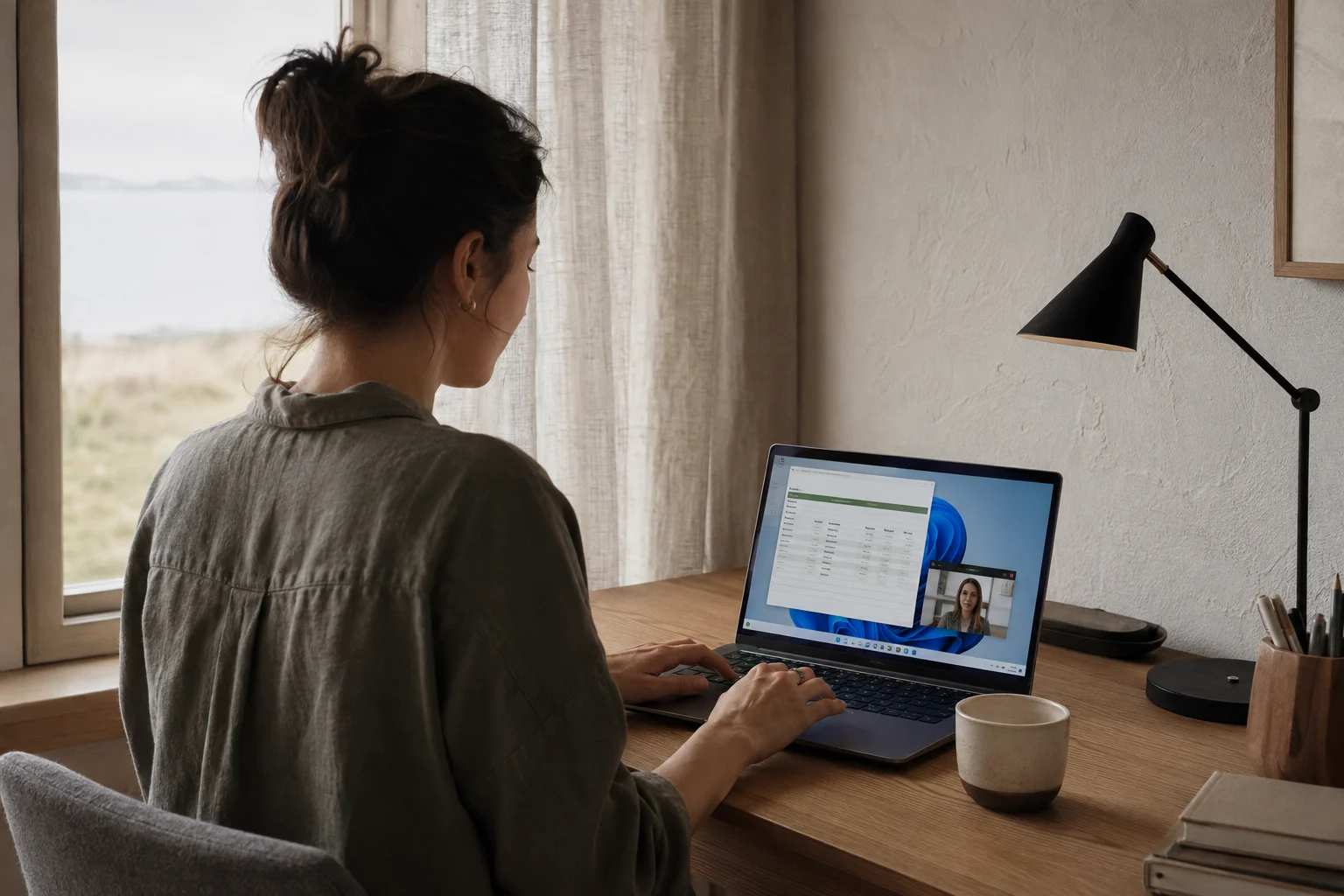
A colleague in London. A designer in Sydney. An operations lead in Frankfurt. Choose an available region for each Jump-Desk and give every person a consistent Windows environment on a supported device.
Apps and files remain on that desktop between sessions. A reliable internet connection and supported remote desktop client are needed; your chosen software may require its own licences.
Find a use case like yoursAFTER THE FIRST INVITATION
The value is in the routine: welcoming a colleague, matching the workspace to the work and keeping access deliberate as people and projects change.
Invite them by email, choose their role and review additional permissions. Assign a suitable desktop, then set up their separate Windows access and connection.
Give an appropriate colleague permission to manage members or assignments. Review billing access separately so everyday administration does not imply control of payment settings.
Review the usage available to your role and the workspaces assigned to your people. Check each monthly desktop's 300-hour uptime allowance against the team's working pattern.
Save required files, review Windows access and Team membership, then decide whether to retain each desktop. Membership, machine access and billing are separate decisions.
A PRACTICAL FIRST SETUP
A founder, an operations colleague and a client-services specialist can each have a dedicated Months Jump-Desk. Choose a suitable region and tier for each person, then use the Team to keep assignments and permissions organised.
YOUR FIRST TEAM, STEP BY STEP
You know your business. We guide the workspace setup.
Bring a Team name, your colleagues’ email addresses and an idea of the work they need to do. No specialist cloud knowledge required.
You can start organising your Team in minutes. Desktop readiness depends on provisioning, available capacity and the applications you need.
Sign in and open Jump-Teams. Choose Create Team and give it a name your colleagues will recognise. The creator becomes the primary Owner. If Team creation is not available in your account, contact support.
Have ready: a Team name and your preferred supported currency.
Invite colleagues by email. Choose Admin or Member (the Team creator is Owner) and review any additional permissions. Each colleague accepts the invitation with the intended account.
A helpful starting point: Member access for everyday users, with only the extra rights they need.
Create a Team Jump-Desk, select the person who will use it, and choose the region, plan and performance. Start with Months for regular use. Review the available price before subscription checkout; eligible Hours desktops use wallet funding.
Months includes up to 300 hours of uptime per desktop each month.
Once provisioning completes, review the person’s Windows access and follow the connection guidance for their supported device. Install compatible software, sign in to the tools you use and get to work.
Team roles and Windows accounts are separate. Complete both parts of onboarding.
WHEN PEOPLE JOIN, MOVE OR LEAVE
Team permissions control what someone can do in Jump-IT. Windows access controls their account inside a desktop. Review both when a person’s responsibilities change.
Before deleting a desktop, save any files you need. Before ending a project, review desktop retention and billing as well as membership.
Ask for help with your setupREADY WHEN YOU ARE
Open your account to create a Team, or talk to us about the setup you have in mind.
Sign-in is required. Team creation depends on the access available to your account.
REAL WORK. PRACTICAL POSSIBILITIES.
Four illustrative ways to use Jump-Teams. Find the one that feels like your business, then make the setup your own.
01 / START-UPS
The scenario: a founder brings in an operations lead and a first customer-support colleague. Everyone already has a laptop; the business needs consistent Windows workspaces.
Start with Months for regular working days.New colleagues get a dedicated place to work. The founder can see the people and desktops together without arranging another laptop shipment.
02 / DISTRIBUTED SMALL BUSINESSES
The scenario: a small consultancy works across the UK, Europe and Australia. Its people need Windows applications while using a mix of Macs, tablets and laptops.
Months for regular work; check the 300-hour monthly uptime allowance against your needs.The team returns to its own Windows workspaces from supported devices. Apps and files remain on each desktop between sessions.
03 / AGENCIES & FREELANCERS
The scenario: a creative agency brings in a freelance specialist for a short engagement. The project needs a dedicated Windows environment and a clear view of who can access it.
Hours for occasional sessions. Months when the work becomes regular.Project work has a dedicated environment, with a clear owner and deliberate access decisions from start to finish.
04 / DEVELOPERS & SOFTWARE TESTING
The scenario: a developer needs to try an installer, check a Windows workflow or evaluate a compatible tool without changing the computer they depend on every day.
Hours for short experiments and intermittent development.Keep experimental work separate from your daily machine. Your test desktop persists between sessions, so a clean start requires a new desktop from Create Jump-Desk.
Jump-Teams is the shared administration area for Jump-Desk Windows cloud PCs. A Team owner can invite colleagues, assign roles and desktops, and review the usage and billing controls available to their role.
No specialist cloud knowledge is needed for the guided setup. Create a Team, invite colleagues, choose each desktop’s region, plan and performance, then follow the connection guidance. You can start organising a Team in minutes; desktop readiness depends on provisioning, regional capacity and the software you need to install.
Months suits regular work and includes up to 300 hours of uptime per desktop each month. It uses subscription checkout rather than the Hours wallet. Review the current regional price and plan terms before checkout.
Yes. Choose from the available cloud regions for each Jump-Desk and connect using a supported device and remote desktop client. A reliable internet connection is required, and responsiveness depends on the connection and distance from the selected region.
Hours can suit occasional coding, freelance work, testing compatible software or short projects. Compute is charged while the machine runs. A separate service charge continues while the desktop is retained, even when compute is stopped. Review available credit and rates before creating one.
You can create and assign a Jump-Desk to each person. Team membership and Windows access are separate controls. When onboarding or removing someone, review both their Team permissions and their Windows access to the relevant desktop.
Windows 11 Pro is included. You can install compatible software, but other applications may need separate licences. A new Jump-Desk starts with a fresh Windows environment and then retains changes between sessions. It does not automatically reset when you disconnect.
YOUR NEXT CHAPTER STARTS SMALL
Start with the people and workspaces you need today. Sign in or create an account, then review your setup before payment.
DER JUMP-DESK
Ein Jump-Desk ist ein dauerhafter Windows-11-Pro-Cloud-PC, den du in einer geführten Einrichtung konfigurierst und von unterstützten Geräten aus remote nutzt.
DEIN DESKTOP IN DER CLOUD
Deine Apps und Dateien bleiben zwischen Sitzungen auf deinem Jump-Desk. Da die Rechenleistung remote bereitgestellt wird, kannst du dich von einem anderen unterstützten Gerät erneut verbinden, ohne den Desktop selbst zu verschieben.
Eine dauerhafte Windows-11-Pro-Umgebung, die zwischen Sitzungen verfügbar bleibt
Administratorrechte zur Installation von Software, die mit Windows 11 kompatibel ist
Remote-Zugriff von unterstützten Windows-, macOS-, iPhone-, iPad-, Android- und weiteren unterstützten Geräten
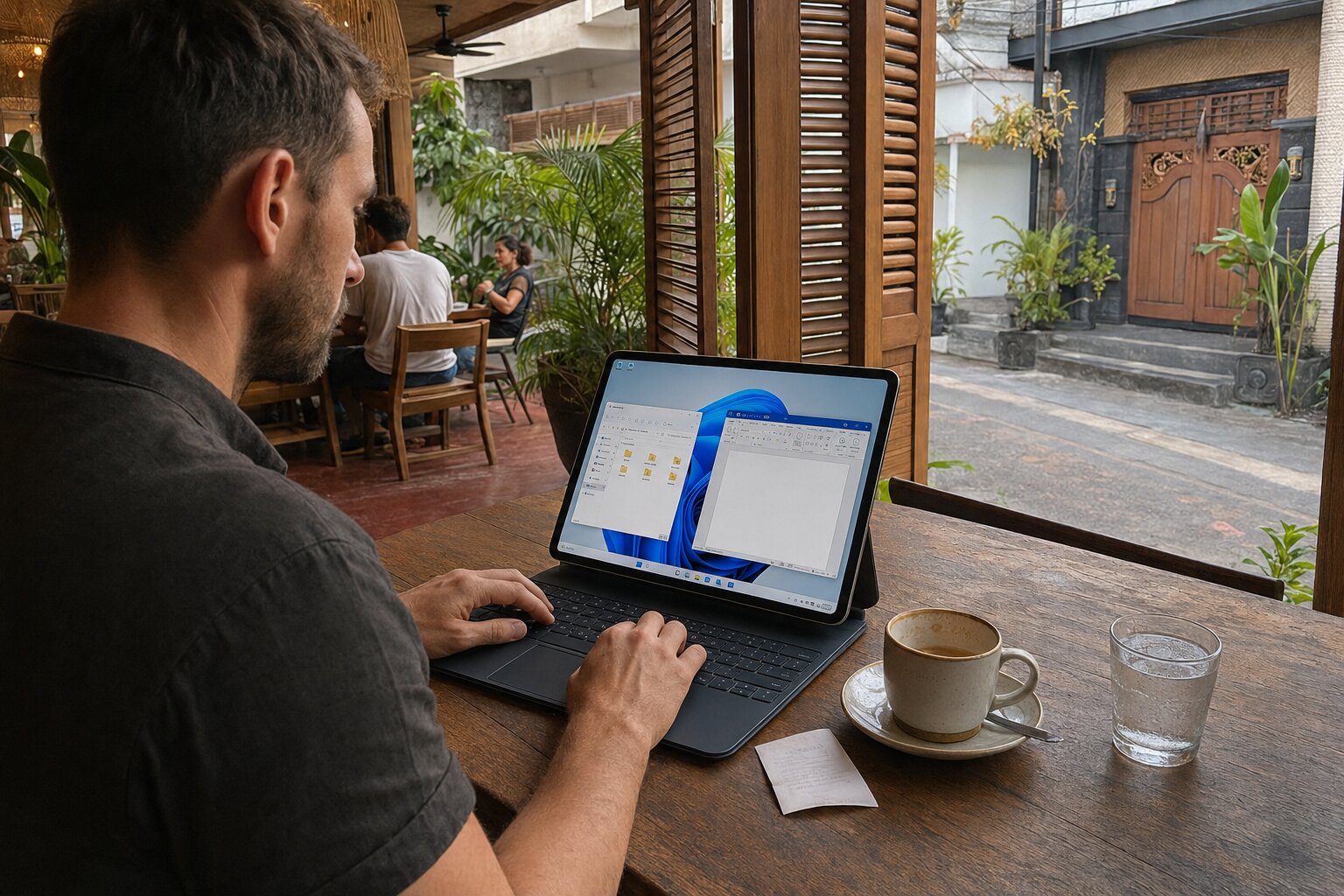
Deine Windows-Arbeitsumgebung
Über einen unterstützten Remote-Desktop-Client erreichbar
DEINE KONFIGURATION
Der geführte Ablauf zeigt die wichtigsten Optionen, bevor dein Jump-Desk erstellt wird.
01
Wähle eine verfügbare Region, in der dein Jump-Desk und sein Speicher erstellt werden.
02
Wähle eine Leistungsstufe für deine Arbeitslast. Dein Dashboard zeigt, welche Änderungen für deine aktuelle Konfiguration verfügbar sind.
03
Wähle eine Stunden-, Monats- oder Jahresnutzung und prüfe den verfügbaren Preis vor dem Checkout.
YOUR DESKTOP. YOUR WAY OF WORKING.
Jump-Desk runs the computer in the cloud. Your supported device becomes the way you reach it.
Use a supported remote desktop client on Windows, macOS, iPadOS, Android or other compatible platforms. Your client and connection determine which local device features are available.
Installed apps and saved files remain on the desktop between sessions. Keep important work backed up separately, just as you would with another computer.
Select an available region and performance tier for your workload. Your account shows which later configuration changes are supported for that desktop.
Install compatible Windows software with administrator access. Check additional licences and cloud-use requirements for each application.
A PLAN AROUND YOUR ROUTINE
Choose the pattern closest to your work. You can compare current regional prices before creating a desktop.
A persistent desktop for the apps and files you use often. Months includes up to 300 hours of uptime per desktop each month, with subscription checkout.
Check your expected uptime against the allowance. A disconnected desktop can still be running.
Compare personal plansPlanning ahead? Explore Years for longer-term use, and review its uptime allowance and commitment before checkout.
A LOOK INSIDE
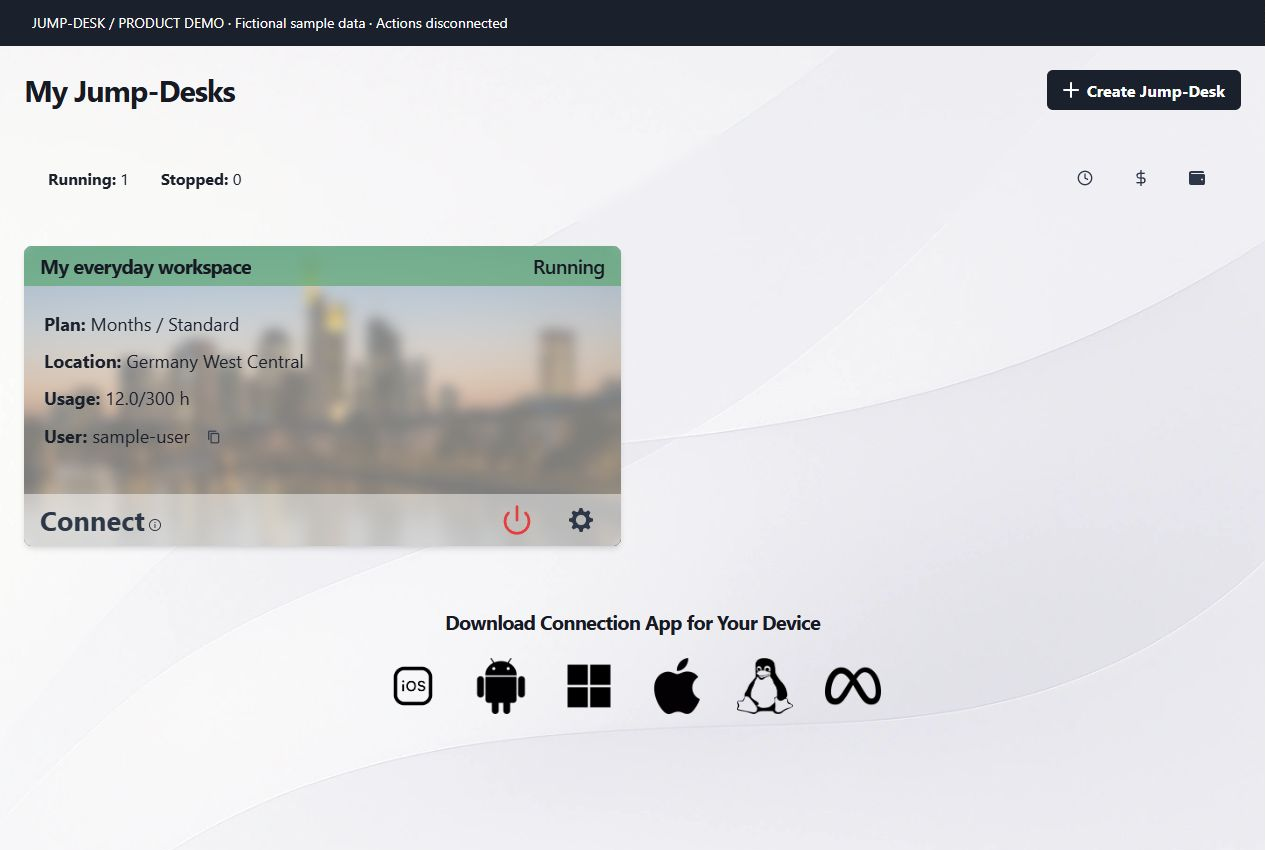
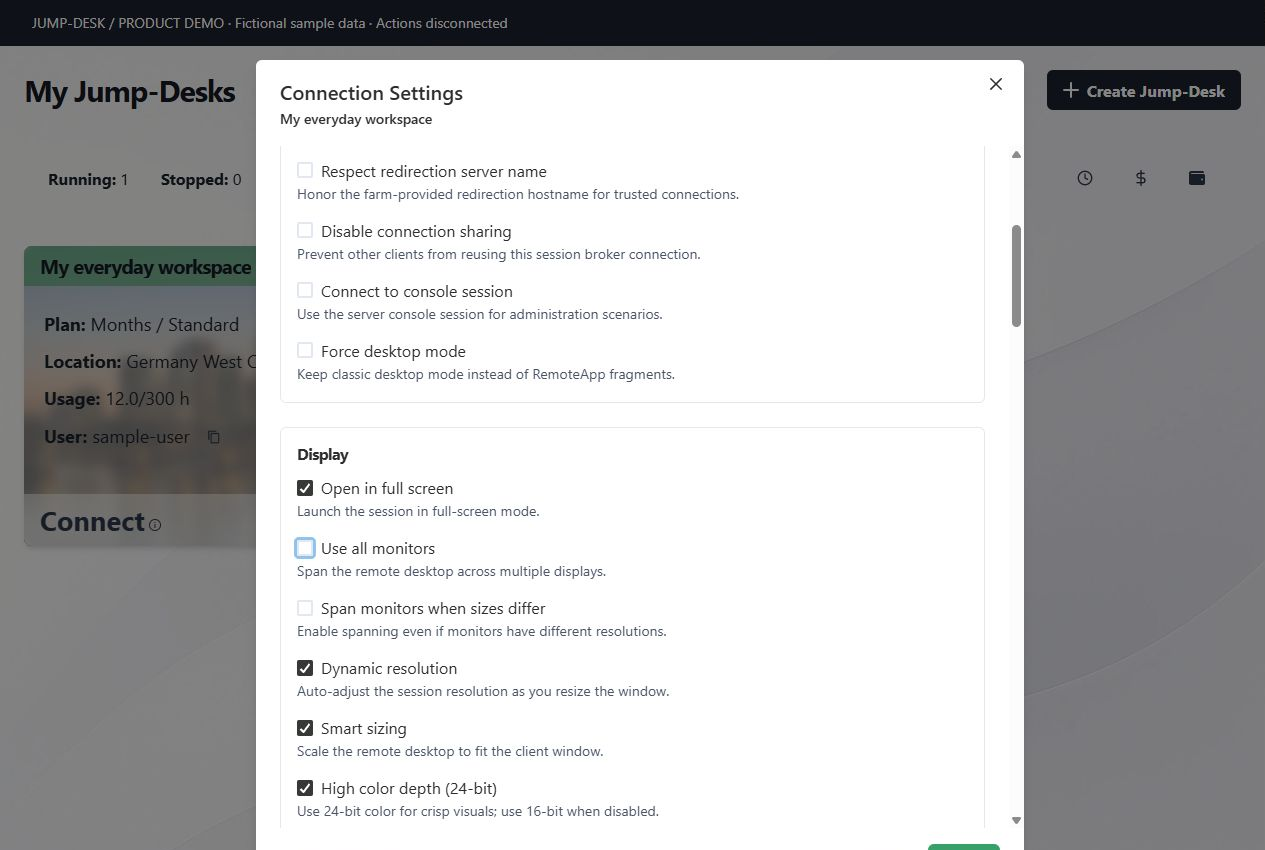
These captures show the current Jump-Desk interface with fictional sample data. No customer account is shown.
YOUR DESK CAN TRAVEL LIGHT
A quiet morning at home. A few focused hours elsewhere. Reconnect to the same Windows environment without rebuilding your applications on every device you use.
Choose an available region suited to your location and use a reliable internet connection. A cloud PC needs connectivity; latency and application requirements still matter.
Explore supported connections
FROM POSSIBILITY TO A PRACTICAL SETUP
Four illustrative ways to use a personal Jump-Desk. Start with your software and routine, then choose the configuration.
01 / MACS & TABLETS
You like your Mac or tablet, but a particular application works best on Windows. Give that work its own cloud PC instead of changing your everyday device.
Months for regular Windows work; Hours for occasional tasks.A familiar personal device, with access to a separate Windows workspace when the task calls for it.
02 / INDEPENDENT PROFESSIONALS
Prepare a proposal at home, review a spreadsheet from a different laptop and return to the same installed tools. Your working environment stays on your Jump-Desk.
Start with Months for regular working days.Less time recreating your setup on another computer. More continuity between focused working sessions.
03 / LEARNING & PERSONAL PROJECTS
Explore spreadsheets, coding tools or a Windows-only course application in a workspace dedicated to the project.
Hours for occasional practice; Months for a regular learning routine.A consistent place to pick up your project, with your everyday computer kept separate from the new setup.
04 / DEVELOPERS & TINKERERS
Check a Windows installer, evaluate a tool or work on a small development project without changing the computer you rely on every day.
Hours suits intermittent testing. Its service charge continues while retained.A separate place for experiments. A retained desktop keeps changes; a new desktop gives you a fresh start.
A GUIDED START
Sign in and select your available region, performance tier and plan. Give the desktop a name that makes sense to you.
Check the price, uptime allowance and funding requirements for your configuration. Monthly and yearly subscriptions work differently from the Hours wallet.
Follow the connection guide, install a supported remote desktop client and use your connection file. Desktop readiness depends on provisioning and capacity.
Install compatible licensed applications, save your work and reconnect when you need it. Keep a separate backup and review usage as you go.
Choose your configuration and see the full price before checkout.
A Jump-Desk is your own persistent Windows 11 Pro cloud PC. Choose an available region, performance tier and plan, then connect from a supported device using a remote desktop client. Your applications and files stay on that desktop between sessions.
Yes. A supported remote desktop client lets your Mac, iPad, Android device or other compatible device connect to Windows running on your Jump-Desk. Check the client requirements and your application's compatibility. A keyboard and pointing device can make detailed work easier on a tablet.
Months is a practical starting point for regular work and includes up to 300 hours of desktop uptime per month. Hours suits occasional sessions and experiments. Hours compute is charged while running, with a separate service charge while the desktop is retained, including when compute is stopped.
Your Jump-Desk is persistent: disconnecting does not reset its installed applications or saved files. Save your work normally and keep a separate backup of important files. Deleting a desktop removes its data.
Windows 11 Pro and administrator access let you install compatible applications. Other software may need its own licence. Check hardware requirements, licence terms and any restrictions on cloud or remote use before committing to a workflow.
No. You need a reliable internet connection and a supported remote desktop client. Responsiveness depends on your connection, the chosen region and the workload. Select an available region close to where you expect to connect.
A new Jump-Desk starts with a fresh Windows environment, then keeps your changes between sessions. It does not reset automatically when you disconnect. For a clean test, create a new desktop from Create Jump-Desk after saving anything you need.
No. You can use a personal Jump-Desk on your own. Jump-Teams adds shared administration when you need to invite colleagues, assign desktops and manage access across a business.
Du kannst über dein Konto hochstufen, herabstufen oder kündigen. Stunden- und Monatstarife erfordern keinen langfristigen Vertrag.
Wähle verfügbare Region, Leistung und Tarif in wenigen geführten Schritten.