
HOW JUMP-IT WORKS
From account to desktop, without an infrastructure project.
A guided flow takes you through the choices that matter, then your dashboard shows you how to connect once the Jump-Desk is ready.
FOUR CLEAR STEPS
The important decisions stay visible from the start.
STEP 01
Sign in with an account you already use
Continue with Google, Microsoft, or Apple. Jump-IT does not ask you to create another password.
STEP 02
Choose region, performance, and plan
Select from the options currently available for your Jump-Desk and the way you expect to use it.
STEP 03
Review the price and create your desktop
The available price is shown before checkout. Provisioning time can vary by region and capacity.
STEP 04
Follow the connection guide
Once provisioning is complete, your dashboard provides the details and steps needed to connect from a supported device.
PRODUCT WALKTHROUGH
See the guided setup before you begin.
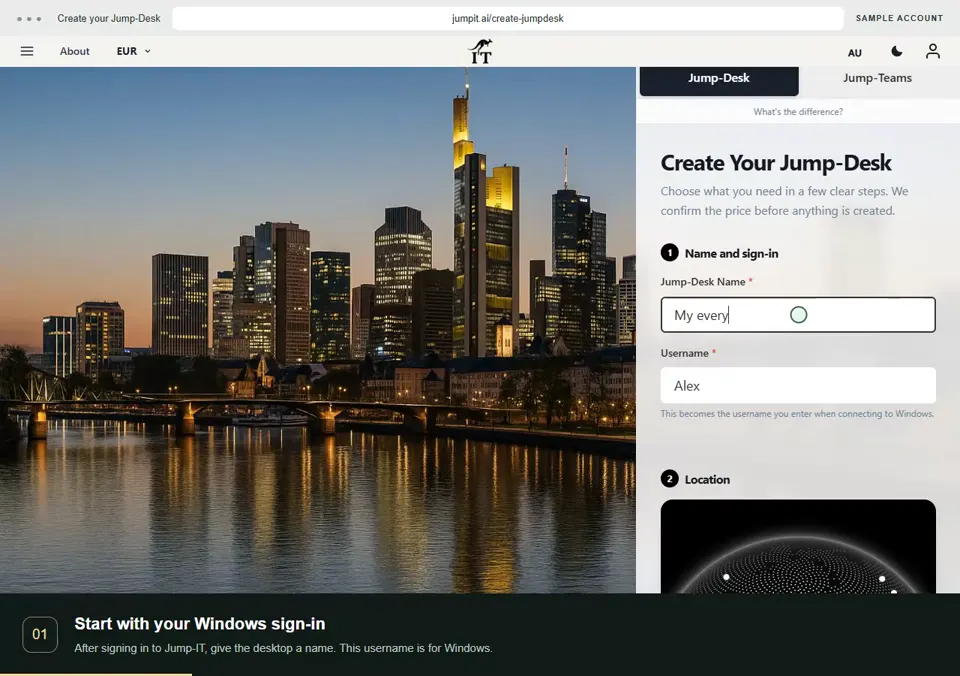
This recording uses the current app with a sample account and example prices. Follow the configuration through to the checkout review.
JUMP-DESK · VIDEO GUIDES
Your first desktop, step by step.
Recorded from the current app with sample accounts and example prices. Connection guides show the handoff to your remote desktop app; they do not show a live Windows session.
Create your Jump-Desk
Name your desktop, choose a region and plan, and review the configuration before checkout.
0:27 · 2.0 MB · English on-screen guide
Read the steps — Create your Jump-Desk
- Start with your Windows sign-in. After signing in to Jump-IT, give the desktop a name. This username is for Windows.
- Choose a nearby region. Pick from the regions available to your account. Your desktop will run in that region.
- Choose how you use it. This example uses Monthly. Review the current price and included uptime before checkout.
- Choose the power for your work. Compare the available CPU, memory and storage. Example prices are shown in this recording.
- Review before you pay. Check the total and terms, then continue to checkout. This demonstration stops before payment.
HOW JUMP-TEAMS WORKS
From the first invite
to a ready workspace.
Three short walkthroughs. Nine closer looks.
See the people, desktops and access controls before you begin.
01 / 03Give the Team a familiar name and confirm its currency before creation.
PEOPLE & PERMISSIONS
Give everyone the right start.
Create the Team, invite your colleagues, and choose the access each person needs.
Name your Team
Choose Create Team from Active Team. Add a name and confirm the currency before creating it.
Invite a colleague
Open Members and choose Invite member. Enter the email address they will use to join.
Review their permissions
Choose Member or Admin and the additional permissions they need. Send the invitation; they accept it with their own account.
Team roles decide what someone can manage in Jump-IT. Windows access is set separately.
BEFORE YOU START
A few useful details, stated upfront.
Use a device supported by Microsoft Remote Desktop, the Windows App, or another compatible remote desktop client.
Software installed on the Jump-Desk must be compatible with Windows 11 and follow its own licensing requirements.
For hourly plans, usage charges apply while the machine runs and a smaller service fee continues while the Jump-Desk exists.
Ready to configure your Jump-Desk?
Your available options and price are shown as you move through the guided setup.