
SO FUNKTIONIERT JUMP-IT
Vom Konto zum Desktop – ohne Infrastrukturprojekt.
Ein geführter Ablauf führt dich durch die wichtigen Optionen. Sobald der Jump-Desk bereit ist, zeigt dir dein Dashboard die Verbindungsschritte.
VIER KLARE SCHRITTE
Die wichtigen Entscheidungen bleiben von Anfang an sichtbar.
SCHRITT 01
Mit einem vorhandenen Konto anmelden
Fahre mit Google, Microsoft oder Apple fort. Jump-IT verlangt kein zusätzliches Passwort.
SCHRITT 02
Region, Leistung und Tarif wählen
Wähle aus den aktuell verfügbaren Optionen für deinen Jump-Desk und deine geplante Nutzung.
SCHRITT 03
Preis prüfen und Desktop erstellen
Der verfügbare Preis wird vor dem Checkout angezeigt. Die Bereitstellungszeit kann je nach Region und Kapazität variieren.
SCHRITT 04
Der Verbindungsanleitung folgen
Nach Abschluss der Bereitstellung zeigt dein Dashboard die erforderlichen Daten und Schritte für die Verbindung von einem unterstützten Gerät.
PRODUKT-RUNDGANG
Sieh dir die geführte Einrichtung an, bevor du beginnst.
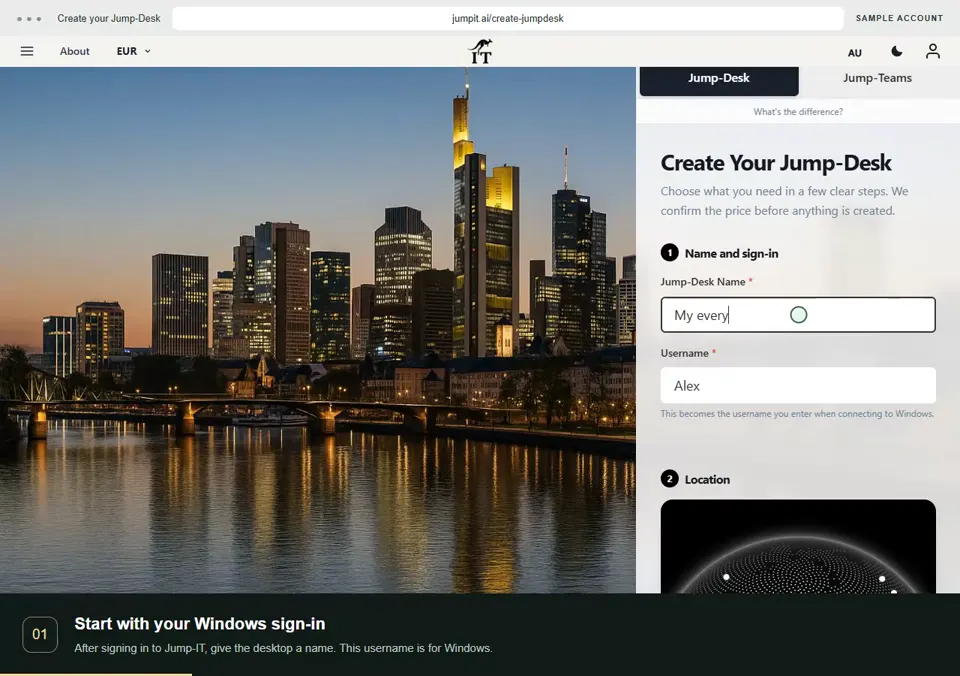
This recording uses the current app with a sample account and example prices. Follow the configuration through to the checkout review.
JUMP-DESK · VIDEO GUIDES
Your first desktop, step by step.
Recorded from the current app with sample accounts and example prices. Connection guides show the handoff to your remote desktop app; they do not show a live Windows session.
Jump-Desk erstellen
Name your desktop, choose a region and plan, and review the configuration before checkout.
0:27 · 2.0 MB · English on-screen guide
Read the steps — Jump-Desk erstellen
- Start with your Windows sign-in. After signing in to Jump-IT, give the desktop a name. This username is for Windows.
- Choose a nearby region. Pick from the regions available to your account. Your desktop will run in that region.
- Choose how you use it. This example uses Monthly. Review the current price and included uptime before checkout.
- Choose the power for your work. Compare the available CPU, memory and storage. Example prices are shown in this recording.
- Review before you pay. Check the total and terms, then continue to checkout. This demonstration stops before payment.
HOW JUMP-TEAMS WORKS
From the first invite
to a ready workspace.
Three short walkthroughs. Nine closer looks.
See the people, desktops and access controls before you begin.
01 / 03Give the Team a familiar name and confirm its currency before creation.
PEOPLE & PERMISSIONS
Give everyone the right start.
Create the Team, invite your colleagues, and choose the access each person needs.
Name your Team
Choose Create Team from Active Team. Add a name and confirm the currency before creating it.
Invite a colleague
Open Members and choose Invite member. Enter the email address they will use to join.
Review their permissions
Choose Member or Admin and the additional permissions they need. Send the invitation; they accept it with their own account.
Team roles decide what someone can manage in Jump-IT. Windows access is set separately.
BEVOR DU BEGINNST
Einige wichtige Details vorab.
Verwende ein Gerät, das von Microsoft Remote Desktop, der Windows App oder einem anderen kompatiblen Remote-Desktop-Client unterstützt wird.
Auf dem Jump-Desk installierte Software muss mit Windows 11 kompatibel sein und den jeweiligen Lizenzbedingungen entsprechen.
Bei Stundentarifen fallen Nutzungsgebühren an, solange die Maschine läuft. Eine kleinere Servicegebühr fällt an, solange der Jump-Desk besteht.
Bereit, deinen Jump-Desk zu konfigurieren?
Die verfügbaren Optionen und der Preis werden während der geführten Einrichtung angezeigt.